What this extension does
NotebookLM is Google's AI note-taking research tool. Inside each notebook you add sources — PDFs, web pages, videos, text documents, and more. This extension reads all of those sources from any notebook you open and lets you download them in the format you need.
It's perfect for backing up your research, reading sources offline, or moving them into another app.
Core features
- One-click extraction of every source in a notebook
- Six export formats — Markdown, merged Markdown, PDF, ZIP, JSON backup, and copy to clipboard
- Pick what to export — tick individual sources or select all
- Filter by type — show only PDF, Video, Web, Text, Slides, Sheet, Image, or File sources
- 100% private — all data is stored locally in your browser, nothing is uploaded
- Resume after interruption — if you close the tab, the extension can pick up where it left off
How to save as PDF
Because browsers don't let extensions create PDFs silently, the PDF button opens your system's print window. From there you choose "Save as PDF." This gives you a clean PDF with selectable text and clickable links.
- Tick the sources you want, then click the PDF button.
- Wait a moment. If the notebook has many documents, a "Preparing print content, please wait…" tip appears for a few seconds while images load.
- The print window opens automatically.
- Set the destination to "Save as PDF." In the print window, look for Destination (or Printer) and choose Save as PDF.
- (Recommended) Paper size: A4. Margins can be "Default" or "None."
- Click Save and pick where to keep the file.
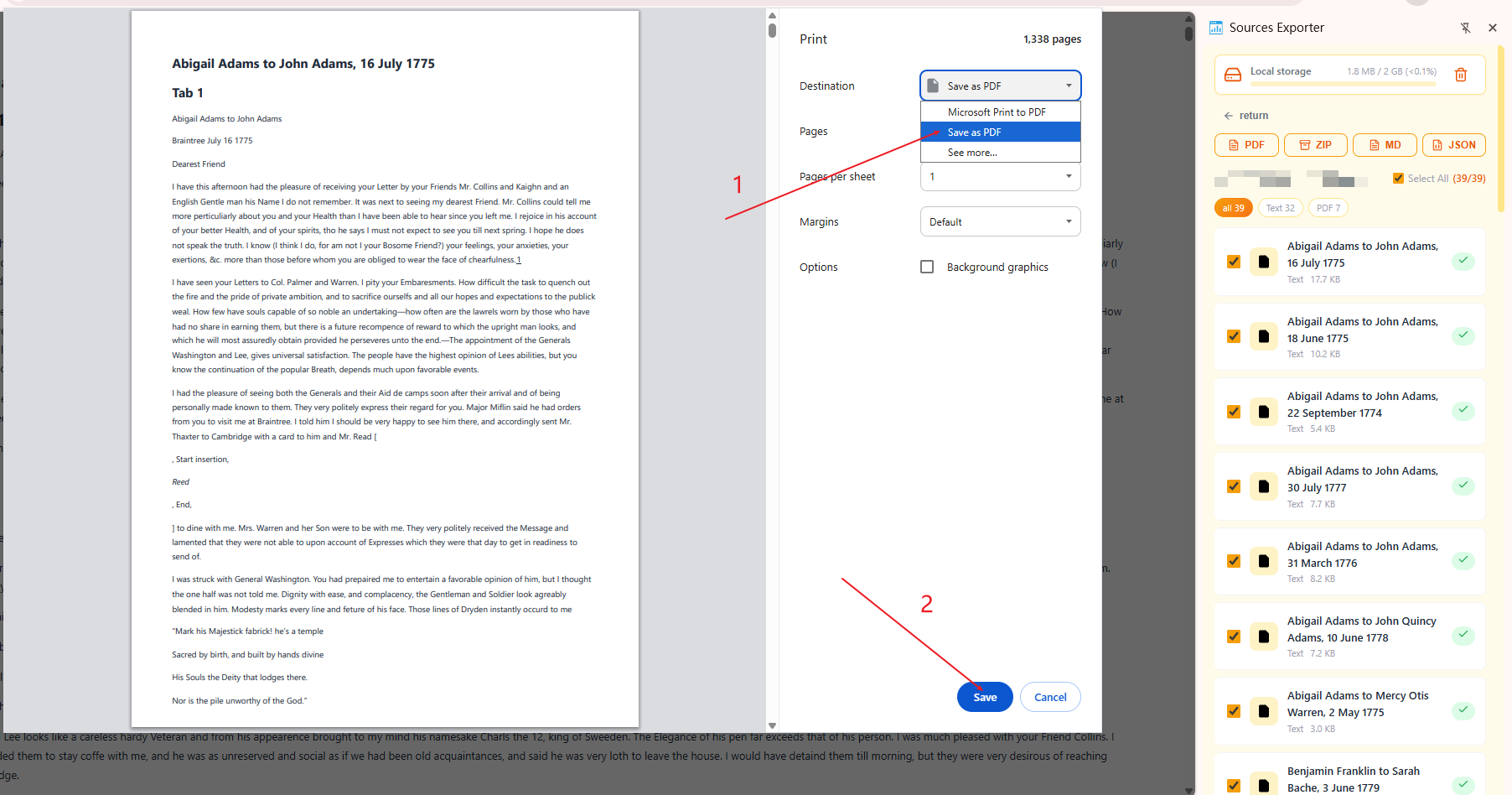
In the print window, choose "Save as PDF" as the destination, then click Save.
Tip: Wait until the print window opens on its own — that means all images are fully loaded. Saving too early can drop images from the PDF.
Frequently asked questions
The extension isn't working or extraction failed — what should I do?
NotebookLM updates its page from time to time, and a big change can temporarily break extraction. If nothing is extracted, sources are missing, or you see an error, please help us fix it fast:
Send an email to the developer at
7556793@gmail.com including:
• The
notebook link (the
notebooklm.google.com/notebook/... address)
• A short description of
what happened (screenshots help a lot)
We'll look into it and push a fix as soon as we can. Thank you for helping improve the extension!
Why is there a charge after the trial?
We want to be upfront with you. Keeping this extension working — fixing it whenever NotebookLM changes its pages, adding new features, and helping you when something goes wrong — takes real, ongoing work. The subscription helps cover those costs so we can keep improving it. That's also why we offer a free trial first, so you can make sure it fits your needs before paying anything.
Is my data safe?
Yes. Every source you extract is saved only inside your own browser. Nothing is uploaded to any server — not by us, not by anyone. Clearing your browser data removes your exports.
Why is the PDF missing images?
The extension waits for every image to fully load before printing, but with many large images this can take a few seconds. Wait until the print window opens on its own, then click Save.
Why does a print window pop up when I click PDF?
Browsers don't allow extensions to generate PDFs silently — it's a security rule. The print window is the standard, safe way. Just pick "Save as PDF" as the destination and you'll get a clean PDF.
Why are the PDF / ZIP / Merge Markdown buttons greyed out?
You haven't ticked any source yet. Check the box next to one or more sources (or use Select all), and those buttons will turn on. JSON is different — it always exports the full notebook.
What does "Select all" do when I'm filtering by type?
It selects all sources of the type you're currently viewing — not every source in the notebook. To select everything, switch the filter to "All" first.
I closed the notebook tab during extraction. Is my progress lost?
No. Reopen that same notebook and the panel will notice and offer to resume the extraction.
Where are my exports stored, and for how long?
Inside your browser's local storage. They stay until you delete them or clear your browser data. The storage bar at the top shows roughly how much space they use.
The extraction got some sources but not all of them.
NotebookLM can collapse source groups by default. The extension expands them automatically, but if a few still slip through, simply run Extract current notebook again. If it keeps happening on a specific notebook, please report it with the link (see the first question).